How to Connect LoopCV to Claude via MCP
You can now connect your LoopCV account directly to Anthropic’s Claude using MCP (Model Context Protocol), allowing you to access your job searches, applications, and other LoopCV actions directly inside Claude.
Follow the steps below to complete the setup.
- Step 1: Create your LoopCV account
- Step 2: Enable MCP on Your LoopCV Account
- Step 3: Open Claude Settings
- Step 4: Open Connectors
- Step 5: Add a Custom Connector
- Step 6: Enter the LoopCV MCP Server Details
- Step 7: Configure Authentication
- Step 8: Sign In With Your LoopCV Account
- Step 9: Make Sure LoopCV Is Enabled in Your Chat
- Step 10: Start Using LoopCV Inside Claude
Step 1: Create your LoopCV account
To get started with the MCP integration, first create a LoopCV account:
Create a LoopCV Account
Step 2: Enable MCP on Your LoopCV Account
Before connecting to Claude, please contact our support team so we can enable MCP access for your account.
You can reach us at:
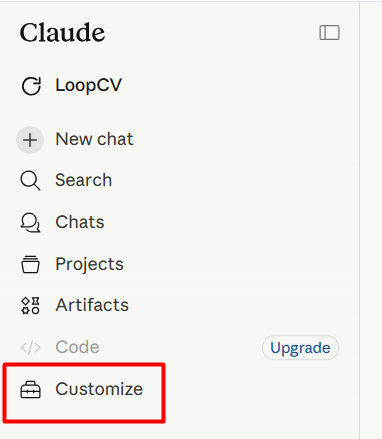
Step 3: Open Claude Settings
Inside Claude:
- Click your workspace/profile name in the top-left corner
- Click Customize
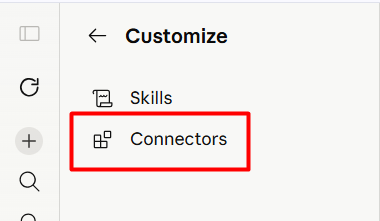
Step 4: Open Connectors
Inside the Customize menu:
- Click Connectors
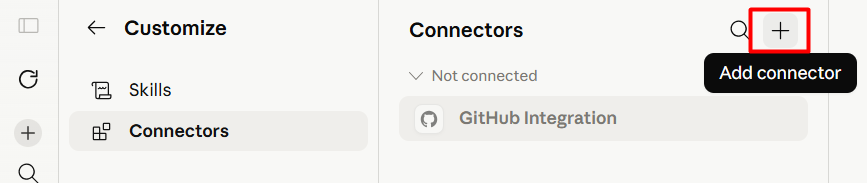
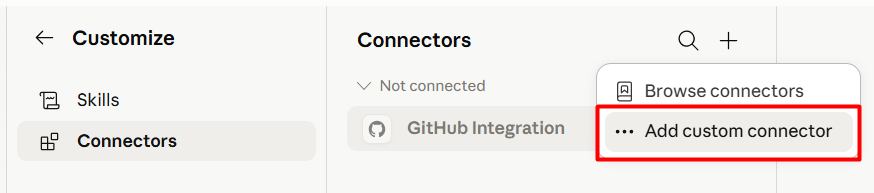
Step 5: Add a Custom Connector
Inside the Connectors screen:
- Click the + icon in the top-right corner
- Select Add custom connector
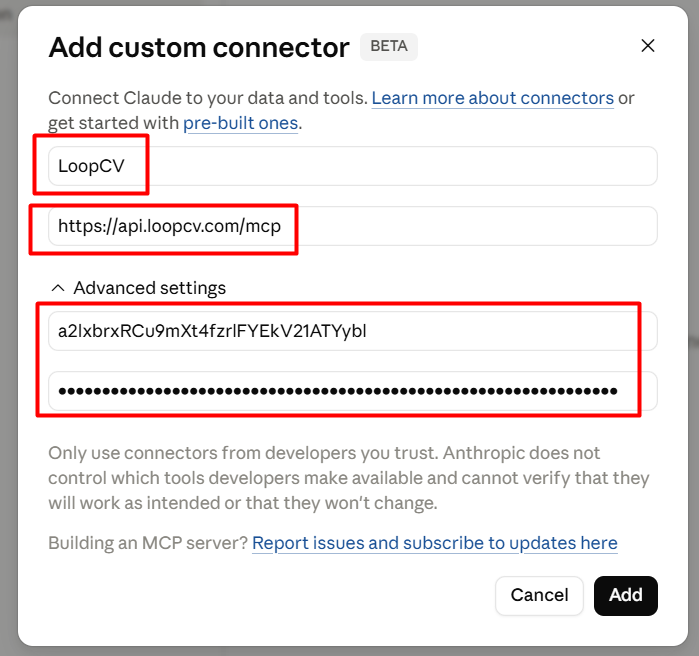
Step 6: Enter the LoopCV MCP Server Details
Enter the following:
Connector Name
LoopCV
MCP Server URL
Step 7: Configure Authentication
Open Advanced Settings and enter the following credentials:
OAuth Client ID
a2lxbrxRCu9mXt4fzrlFYEkV21ATYybl
OAuth Client Secret
4FclqO7sHPPmZs-JVO-4cvfWaqwjUH31aiARW_YIdkF9XEWHdXATw8KTSBovEEpH
Once completed, click Add.
Step 8: Sign In With Your LoopCV Account
After creating the connector:
- Click Connect
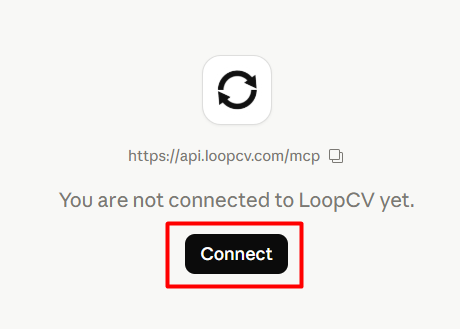
- You will be redirected to the LoopCV login page
- Enter your LoopCV email address and password
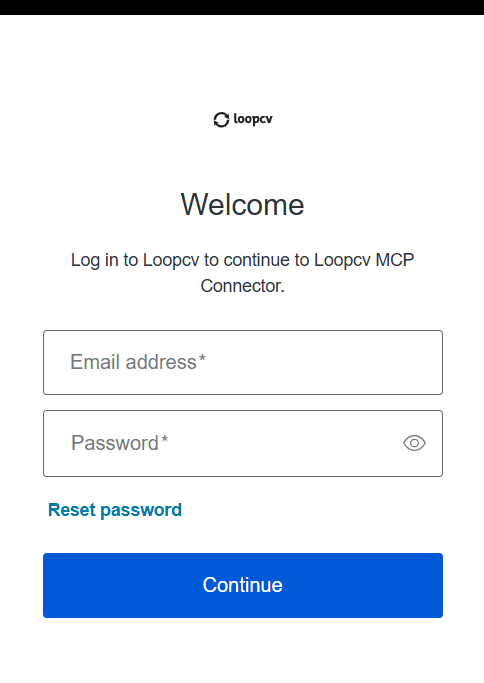
- Click Continue
You will then see the authorization screen.
Click:
Accept
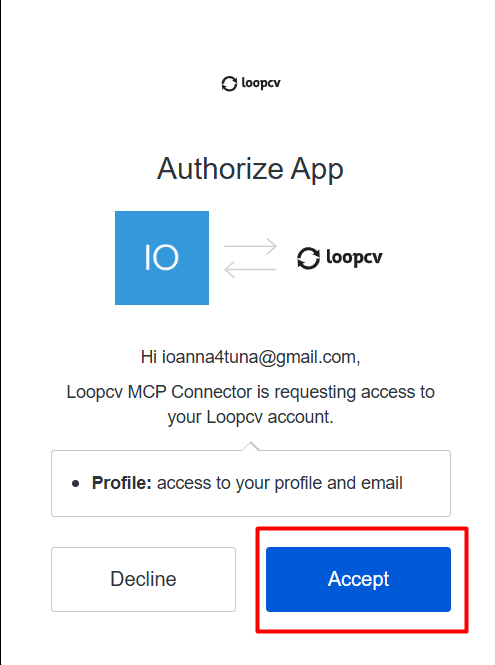
This will authorize Claude to securely access your LoopCV account.
Step 9: Make Sure LoopCV Is Enabled in Your Chat
Once the connection is complete, LoopCV is usually already enabled.
To make sure it’s active:
- Open a new Claude chat
- Click the + button
- Click Connectors
- Verify that LoopCV is toggled ON (as shown in the screenshot)
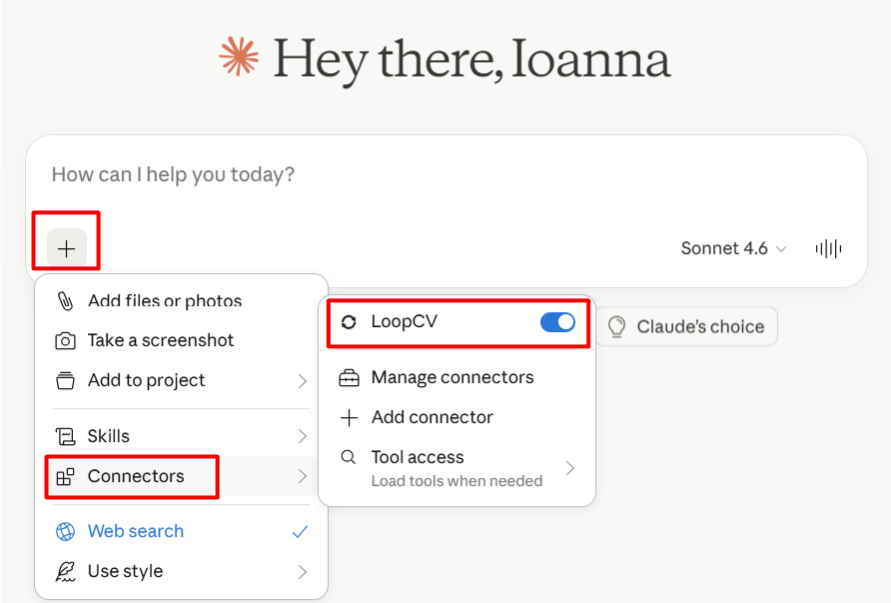
If the toggle is enabled, you're ready to go.
Step 10: Start Using LoopCV Inside Claude
You can now start using LoopCV directly inside Claude.
Try prompts like:
- “Show me my loops”
- “List my active job searches”
- “How many applications have I sent?”
- “Show me my latest matches”
- “Which companies did I apply to this week?”
The first time Claude uses a LoopCV action, you may see a permission request.
Simply click:
Always Allow
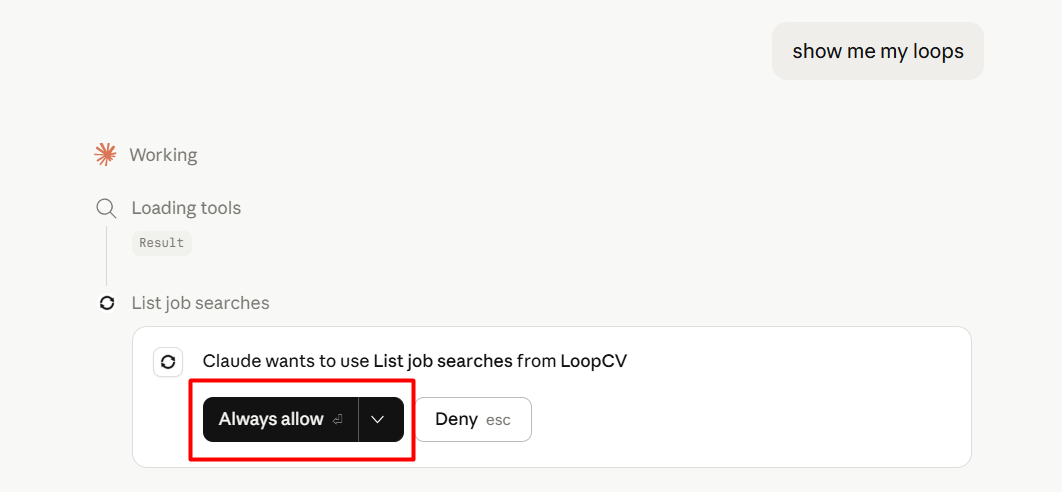
Your LoopCV account is now connected and ready to use inside Claude.
Need help setting up MCP?
Contact our support team at: